ITSM Compass for Windows 11
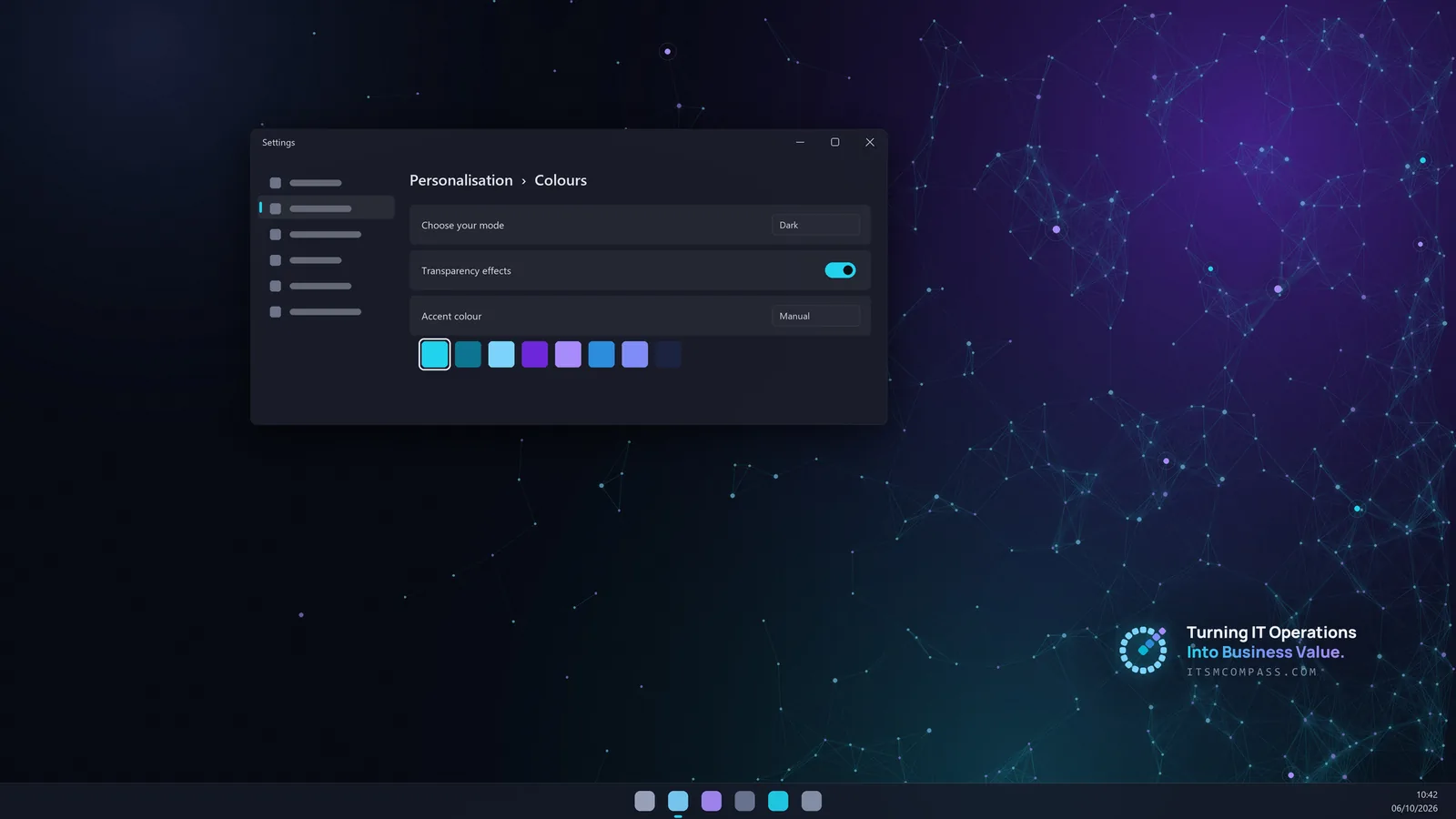
The navy, cyan and violet of this site, on your desktop: three wallpapers, dark mode with a cyan accent, an animated network wallpaper, mouse pointers and folder icons. Install the whole kit or just the parts you want.
What's included
Theme pack
Three wallpapers, dark mode and a cyan accent colour. Double-click the .deskthemepack and Windows applies it.
Animated wallpaper
The moving network and animated logo from this site, for the free Lively Wallpaper app. It pauses by itself while a game or full-screen app is open.
Mouse pointers
A full matching pointer scheme. Install it once, then pick "ITSM Compass" in the mouse settings.
Folder icons
Matching .ico icons for Desktop, Documents, Downloads, Pictures, Music, Videos, OneDrive and more.
Optional: for a clear taskbar, install the free TranslucentTB app from the Microsoft Store, then right-click its tray icon > Desktop > Clear.
The animated wallpaper

Lively plays it as a live desktop. Right-click its tile > Customise to change the frame rate (15, 24 or 30) or hide the slogan.
Folder icons
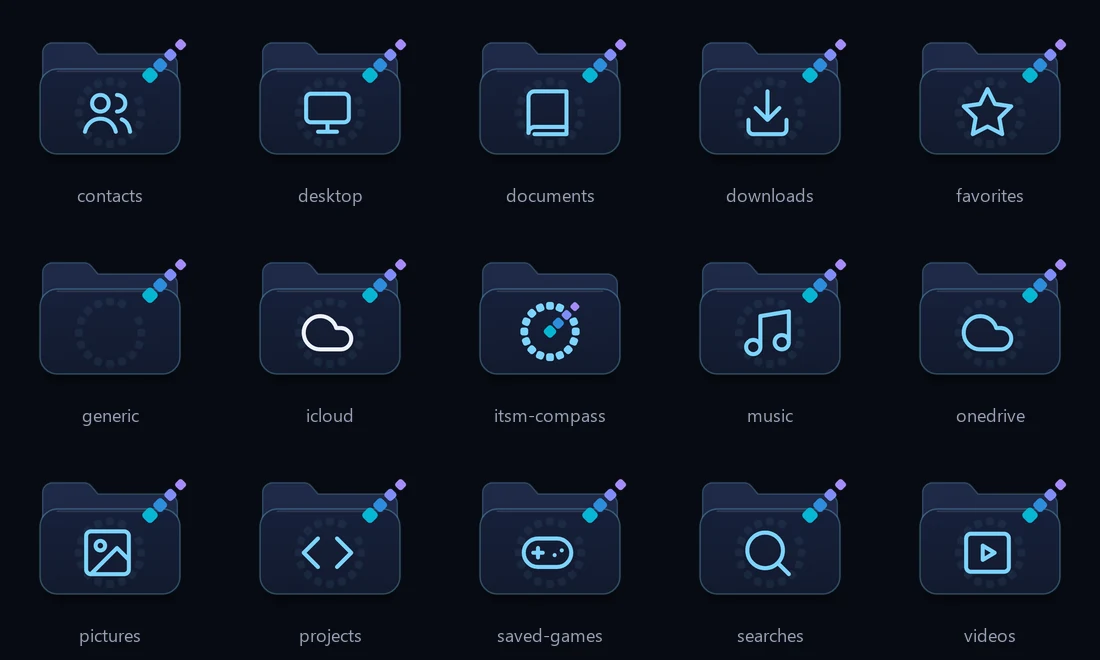
Matching .ico icons for Desktop, Documents, Downloads, Pictures, Music, Videos, OneDrive and more.
Install it
Theme (1 minute)
Double-click the .deskthemepack file (in the full kit it is called "ITSM Compass.deskthemepack"). Windows applies it and lists it under Settings > Personalization > Themes.
Animated wallpaper (2 minutes, free app)
Install Lively Wallpaper from the Microsoft Store (free, open source). Open Lively and drag the ITSM Compass Live ZIP onto its window, or choose + Add wallpaper and pick the ZIP. Click the ITSM Compass tile to set it.
Mouse pointers
Do this after the theme: applying a theme resets the pointers. Open the pointers folder, right-click install.inf > Install (on Windows 11 you may need Show more options first). Windows asks for administrator permission, because the pointers are copied into the Windows folder. On a managed work laptop, IT policy may block this step, and Lively too. Then go to Settings > Bluetooth & devices > Mouse > Additional mouse settings > Pointers, choose the scheme "ITSM Compass" and click OK.
Folder icons
Move the folder-icons folder somewhere permanent, such as Documents: Windows reads each icon from there. Then right-click any folder > Properties > Customize > Change Icon > Browse and pick an icon.
Undo
- Theme: Settings > Personalization > Themes > Windows (dark).
- Pointers: Mouse settings > Pointers > Scheme: Windows Default.
- Folder icons: Properties > Customize > Change Icon > Restore Defaults.
Free to use and share
Free to use and to share unmodified. The font is Manrope, under the SIL Open Font License 1.1; the licence text is in the kit.
© 2026 ITSM Compass
Run IT services for a living?
The ITSM Compass Lab has free SLA, staffing and root cause tools. No sign-up, and your data stays in your browser.